
Connect Instagram with your own app
Set up Instagram Login and use your Instagram app credentials to connect a professional account to Beacon.
Use your own Meta app to manage the credentials for your Instagram connection. This guide covers Instagram in Beacon and API setup with Instagram login in Meta. The separate Instagram through Facebook connection uses different credentials and a different callback.
If Connect with Beacon is available, you can use it without creating your own app. The steps below use Use your own Instagram app.
Before you start
You need:
- An Instagram Business or Creator account. Personal accounts cannot use this publishing connection.
- Access to sign in to that Instagram account.
- A Meta developer account and permission to manage your Meta app.
- Workspace owner access to save credentials in Beacon.
- Public policy pages and accurate business details for your app.
The screenshots show a test app. Account details have been blurred or cropped with AI image editing. Minor visual details can differ. Follow the written steps and the current Meta prompts. Use the callback shown in your Beacon workspace, rather than an address from a screenshot.
1 Copy the Instagram callback from Beacon
The callback URL is where Instagram returns you after you approve access.
- Open Channels in your Beacon workspace.
- Select Browse platforms in Add an account.
- Choose Instagram.
- Expand Use your own Instagram app.
- Copy the OAuth callback URL.
Keep this tab open. On hosted Beacon, the callback is:
https://postwithbeacon.com/api/channels/instagram/callbackIf your workspace shows another URL, use that exact value. Test and production environments need their own app credentials and callback settings.
2 Add Instagram to your Meta app
- Open Meta for Developers.
- Open the app you want to use, or select Create App.
- For a new app, choose the Instagram setup path offered by Meta. Select Business if it asks for an app type.
- Enter your app name, contact email, and business details when requested.
- In the app dashboard, select Add Product and set up Instagram.
- Open Instagram > API setup with Instagram login.
You can add the Instagram product to the Meta app you already use for Facebook, if Meta offers it. Instagram still has its own app ID and secret on this setup page.
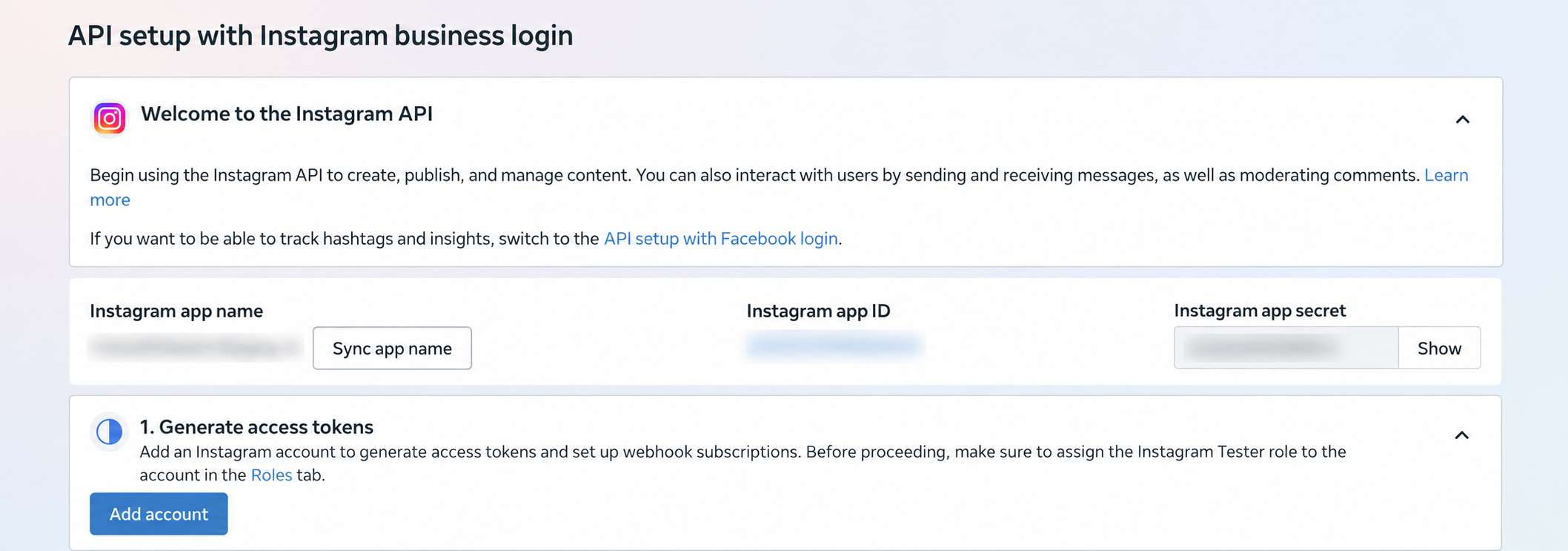
Keep the app in Development during setup. Development mode restricts who can authorize the app. It does not make a post on your real account private.
3 Add your Instagram tester
For development testing, add the Instagram account that will authorize the connection.
- Open App roles > Roles in Meta.
- Select Add People.
- Choose Instagram Tester under Additional roles for this app.
- Enter the Instagram username, select the account, and select Add.
- Sign in to that Instagram account and accept the tester invitation in its app permissions settings.
- Return to Meta and check that the invitation is accepted.
Instagram may show invitations under Apps and websites > Tester invites. Settings labels can vary. If Meta shows another requirement for the account, complete it before you continue.
The Add account button in Generate access tokens is for Meta's dashboard testing flow. Beacon obtains its access token when you connect through Beacon. Do not paste a generated access token into App secret.
4 Configure Instagram business login
- Return to Instagram > API setup with Instagram login.
- Expand Set up Instagram business login. It appears as step 3 in the example.
- Select Set up, or Business login settings if setup is already complete.
- Add the callback copied from Beacon to Valid OAuth Redirect URIs.
- Save the settings.
- Reopen the settings and confirm that the callback remains saved.
The address must match exactly, including the hostname, path, and trailing slash.
Use the callback ending in /api/channels/instagram/callback for this connection.
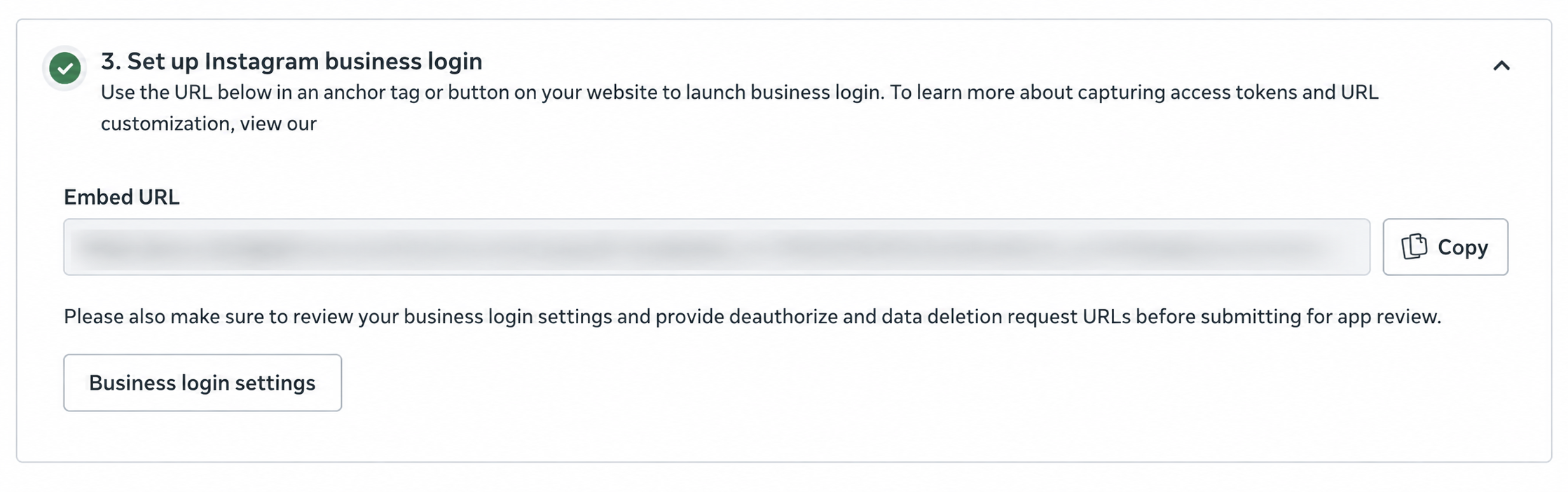
An Embed URL and a green check can appear after setup. You do not need to copy this URL into Beacon or add a login button to your website. Start authorization from Beacon so it can complete your workspace connection.
Leave the webhook fields blank
Configure webhooks is a separate section. Its Callback URL receives event notifications; it is not the login callback. The Verify token belongs to webhook verification. It is not your email address or Instagram app secret.
For this publishing connection, leave both webhook fields blank. Do not select Verify and save in that section to save your login callback.
5 Complete app details and access requirements
In App settings > Basic, complete the app details that Meta requests. Use your app's name, a monitored contact email, and public privacy, terms, and deletion information. Open policy links in a signed-out browser to confirm that Meta can access them.
Use policies that describe your app and its use of Beacon. Beacon's privacy policy and terms describe Beacon's service; they do not replace your organization's disclosures.
Review Business login settings for any required deauthorization or data deletion request URLs before App Review. These are separate from the OAuth callback. That callback address must receive and handle requests from Meta; a general policy page cannot do this. If Meta requires a callback address you cannot provide, contact Beacon support before submitting that field.
Beacon's Instagram Login connection requests:
| Permission | Purpose |
|---|---|
instagram_business_basic | Identify the Instagram professional account |
instagram_business_content_publish | Publish content to that account |
Open Complete app review or App Review > Permissions and Features and follow Meta's requirements for these permissions.
Facebook's public_profile approval does not approve Instagram publishing access.
Before accounts outside your app roles connect, obtain the access Meta requires and enable Live mode. Complete business verification if Meta requests it. A successful tester connection does not prove that public access is approved.
Answer data handling questions from your own records
Use the legal name and country of the person or organization responsible for your app's data. List service providers that process Meta data for you, including hosted Beacon when you use it. Confirm provider names and processing countries through Beacon's privacy contact when needed.
Answer questions about authority requests and internal policies from your actual records and practices. Do not copy the example app's business name, hosting location, or answers.
6 Save the Instagram credentials in Beacon
- In Meta, return to API setup with Instagram login.
- Copy the Instagram app ID from the credentials row.
- In Beacon, paste it into App ID under Use your own Instagram app.
- In Meta, select Show beside Instagram app secret and copy the secret.
- Paste it into App secret in Beacon.
- Select Save app credentials.
- Select Continue with your app.
Use the Instagram credentials from the product setup page. The parent Meta app ID at the top of the dashboard belongs to a different credential pair. The generated Embed URL and manually generated access tokens are not app credentials.
Enter the secret directly in Beacon. Do not send it in chat or include it in screenshots. Beacon encrypts the secret and does not display it again after saving. If Workspace owner access required appears, ask a workspace owner to save it.
7 Authorize the account and check publishing
- Sign in to the Instagram professional account you want to connect.
- Approve the access requested by your app.
- Return to Beacon after authorization.
- Confirm the Instagram account name in Channels.
- Check that its status is Ready to publish.
Open Compose, select the Instagram account, and add supported media with your caption. Follow the format and media requirements shown in the composer. Publish content you intend to make public, then open the resulting Instagram link to check the account and post.
Ready to publish confirms the connection state. A successful post confirms that Beacon could publish to the account.
Fix a setup problem
Callback could not be validated
If this appears in Configure webhooks, you are editing the event callback. Clear the login address from that field and save it in Business login settings > Valid OAuth Redirect URIs instead.
Redirect URI does not match
Copy the callback from Beacon again and save it in the Instagram business login settings. Check that it belongs to the same Instagram app whose credentials you saved in Beacon.
Login says the app or account is unavailable
Confirm that the Instagram account is a Business or Creator account. In Development mode, check that its Instagram Tester invitation is accepted. Review Meta's Required actions, permission requirements, and app mode.
Invalid app ID or secret
Use the Instagram app ID and Instagram app secret from API setup with Instagram login. Select Replace credentials in Beacon to correct saved values. Do not use the parent Meta app credentials, an access token, or the Embed URL.
The account connects but a post fails
Read the error in Beacon. Check publishing permission, account access, and the media requirements shown in Compose. Reconnect when Beacon requests it. If the result is Checking, let Beacon resolve the result before you send the same post again.