
Connect Facebook with your own app
Create a Meta app and use its App ID and App secret to connect Facebook Pages to Beacon.
Use your own Meta app when you want to manage the app credentials for your Facebook connection. You control the app in Meta and save its credentials in your Beacon workspace.
Beacon publishes to Facebook Pages. Your personal Facebook account signs in and grants access to Pages you manage. You cannot use this connection to publish to your personal timeline.
If Connect with Beacon is available, you can use that option without creating your own app. The steps below are for Use your own Facebook app.
Before you start
You need:
- Workspace owner access to save app credentials in Beacon.
- A Meta developer account.
- Permission to create content on the Facebook Page you want to connect.
- Access to the business portfolio that will own your app, if Meta requires one.
- Public policy pages and accurate business information for your app.
The screenshots are examples from a test workspace. Identifying details have been blurred or cropped with AI image editing. Minor visual details can differ from the current interface. Follow the written steps and the current Meta prompts. Use your own app details and the callback shown in your Beacon workspace.
1 Copy your callback from Beacon
The callback URL is the address where Meta returns you after you approve access.
- Open Channels in the workspace you want to use.
- Select Browse platforms in the Add an account section.
- Choose Facebook.
- Expand Use your own Facebook app.
- Copy the OAuth callback URL.
Keep Beacon open while you create your Meta app in another tab. On the hosted Beacon site, the callback is:
https://postwithbeacon.com/api/channels/facebook/callbackIf Beacon shows a different callback, use the displayed value. Do not copy the test address from a screenshot.
2 Create your Meta app
- Open Meta for Developers.
- Select Create App.
- If Meta asks for an app type, select Business.
- Select Next.
- Enter an app name that identifies your business and its Beacon connection.
- Enter a contact email that you check regularly.
- If Meta asks for a business portfolio, select the portfolio that should own this app.
- Select Create app.
If the wizard starts with use cases, choose the path for Facebook Login for Business and Page access. Meta can change the order of these screens.
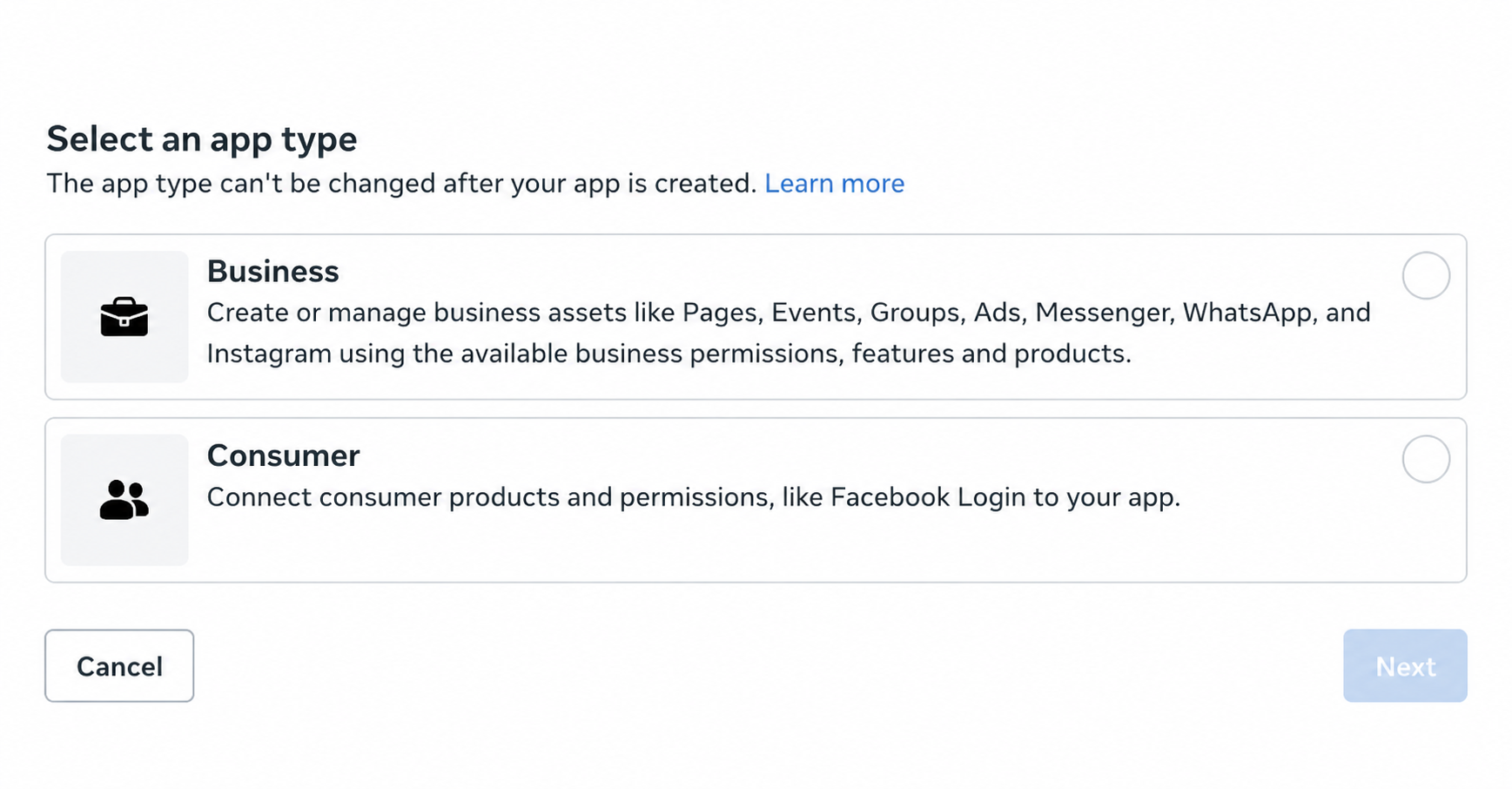
Keep the app in Development while you configure it. Development mode limits who can use the app; it does not make posts on a real Page private.
3 Add Facebook Login for Business
- In your Meta app dashboard, select Add Product.
- Find Facebook Login for Business.
- Select Set up.
- Open Facebook Login for Business > Settings.
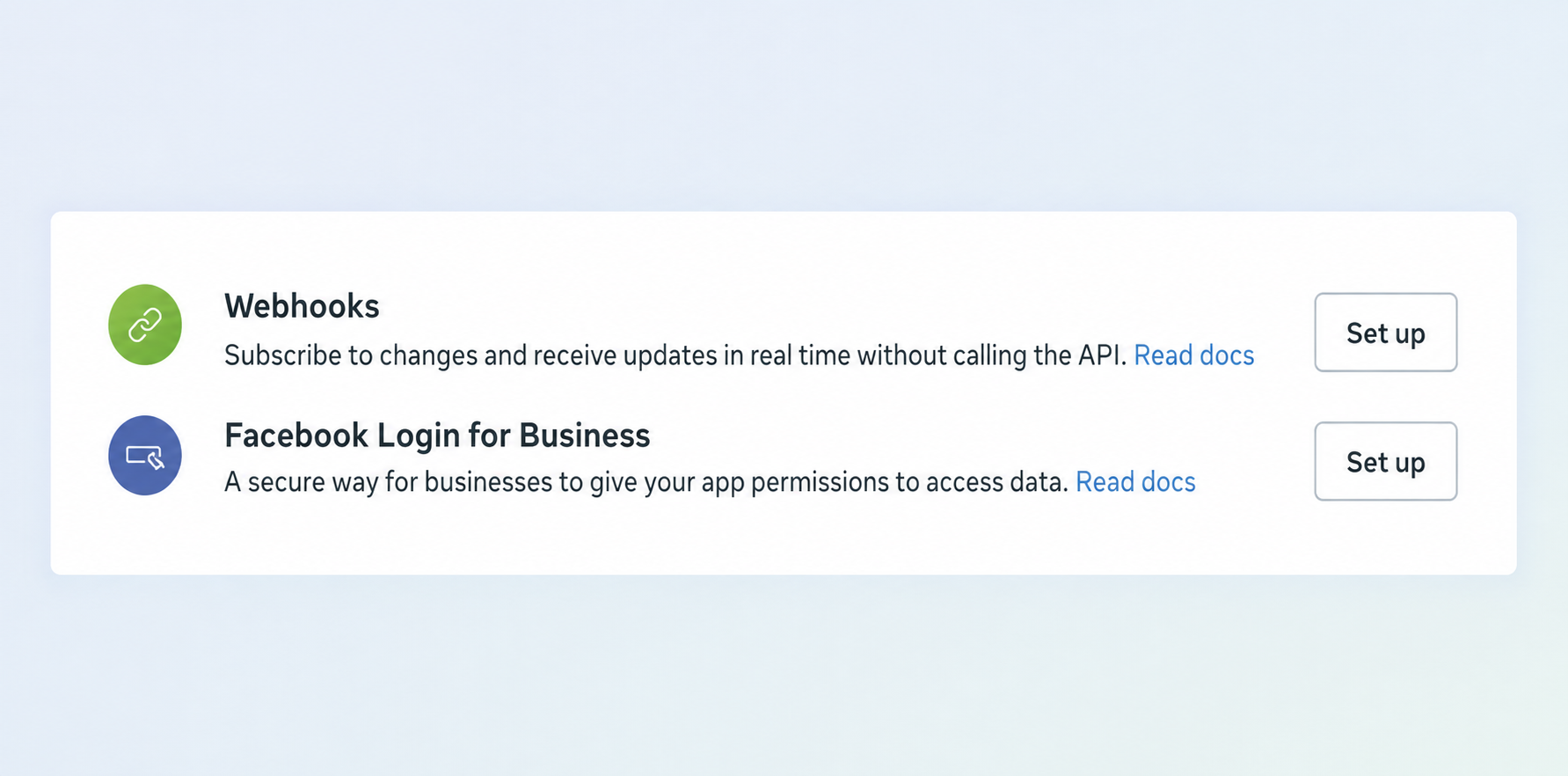
Use Add Product for this step. Add platform under Basic settings opens a different setup.
4 Save the callback in Meta
In Client OAuth settings, check these values:
| Setting | Value |
|---|---|
| Client OAuth login | Yes |
| Web OAuth login | Yes |
| Enforce HTTPS | Yes |
| Use Strict Mode for redirect URIs | Yes |
- Paste your Beacon callback into Valid OAuth Redirect URIs.
- Select Save changes at the bottom of the page.
- Reload the page to confirm the value remains saved.
The URL must match exactly, including its hostname, path, and trailing slash. The Redirect URI Validator checks a URL but does not save it in this field.
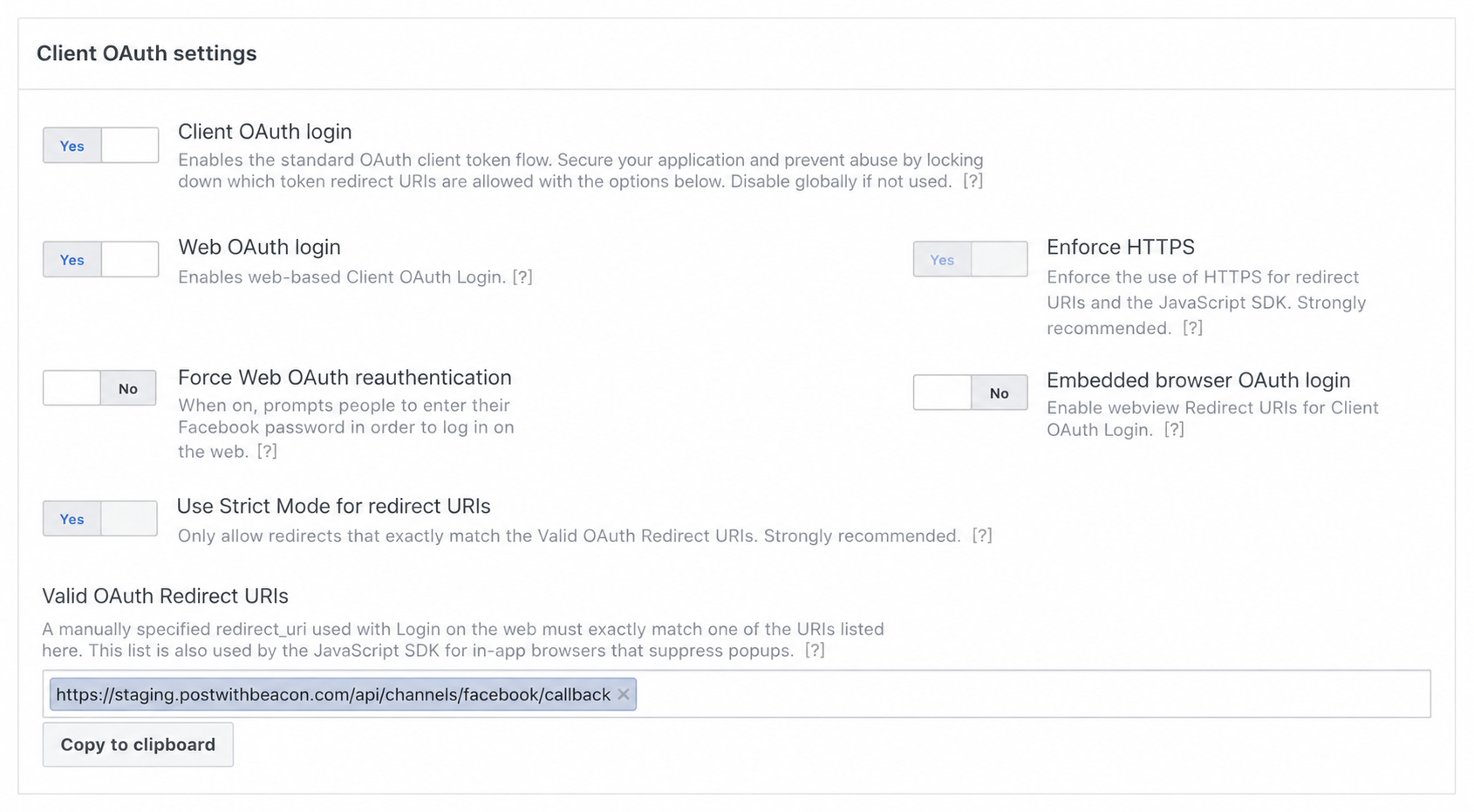
This is a login callback. Do not enter it in a webhook callback field.
5 Complete your app details
Open App settings > Basic and complete the fields Meta requests.
| Field | What to enter |
|---|---|
| Display name | Your app name |
| Contact email | An email address you monitor |
| App domains | The Beacon hostname from your callback, without https:// or a path |
| Privacy policy URL | A public policy that describes how your app handles personal data |
| Terms of Service URL | The public terms that apply to your app |
| User data deletion | Select Data deletion instructions URL and provide your app's public deletion instructions |
| App icon and Category | An icon and category that describe your app |
For https://postwithbeacon.com/api/channels/facebook/callback, the app domain is postwithbeacon.com.
Open your policy links in a signed-out browser to check that the pages are available.
Then select Save Changes.
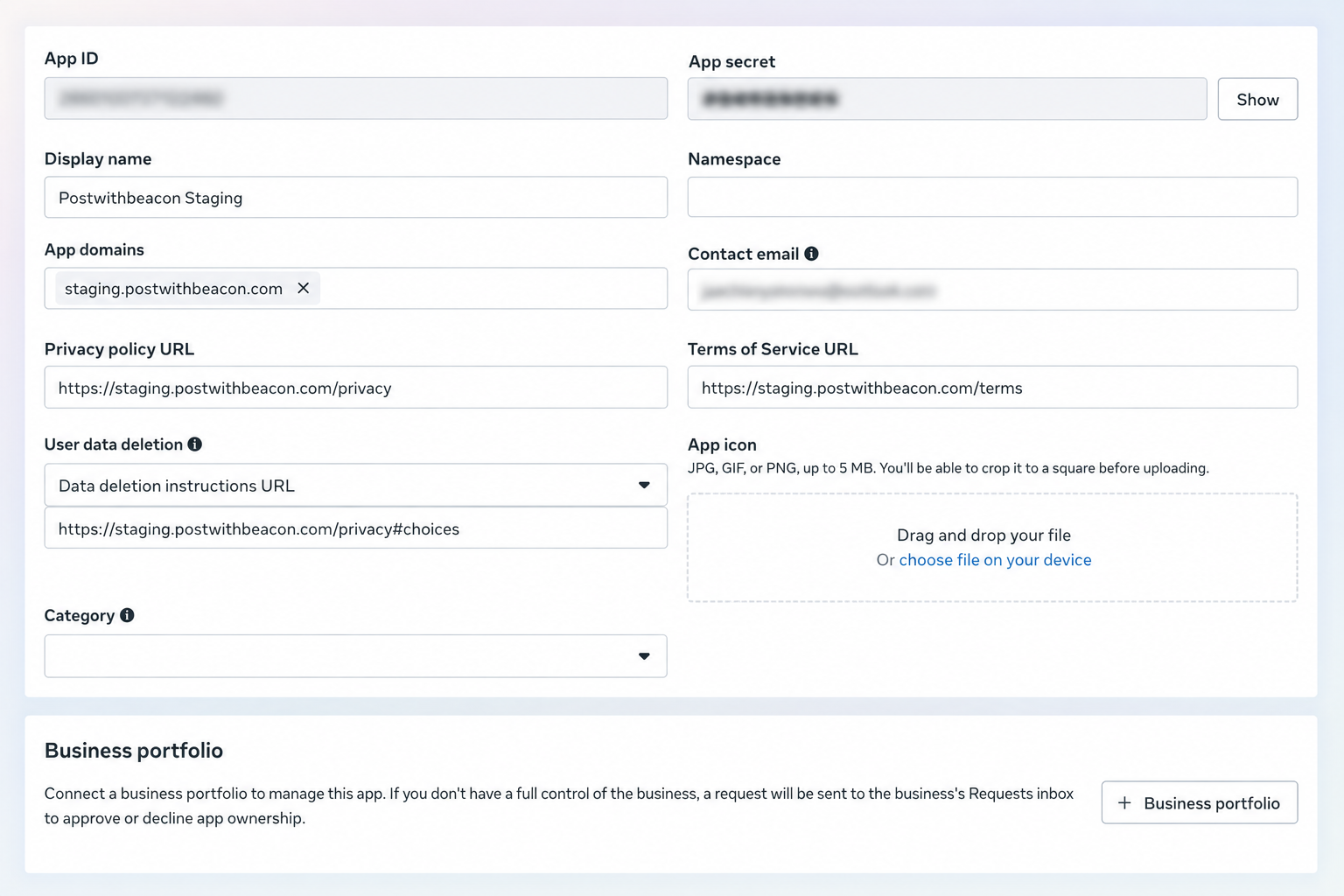
The policy URLs in this screenshot belong to the example app. Use policies that cover your app and its use of Beacon. Read Beacon's privacy policy, terms, and deletion request information when you prepare those details. Beacon's policies describe Beacon's service; they do not replace your organization's own disclosures.
6 Complete Meta access requirements
Meta can request business verification, permission review, and data handling information before it enables access. The requirements depend on your app and who will use it.
Connect your business portfolio
If Meta shows Verification required, open App settings > Basic > Business portfolio. Select the portfolio that should own your app, then select Connect. If that portfolio is unverified, complete Meta's verification steps with your business records.
Enable public profile access
If Facebook Login for Business asks for advanced access to public_profile:
- Open App Review > Permissions and Features.
- Search for
public_profile. - Select Request advanced access.
- Complete the steps Meta displays.
- Confirm that the row shows Advanced access granted.
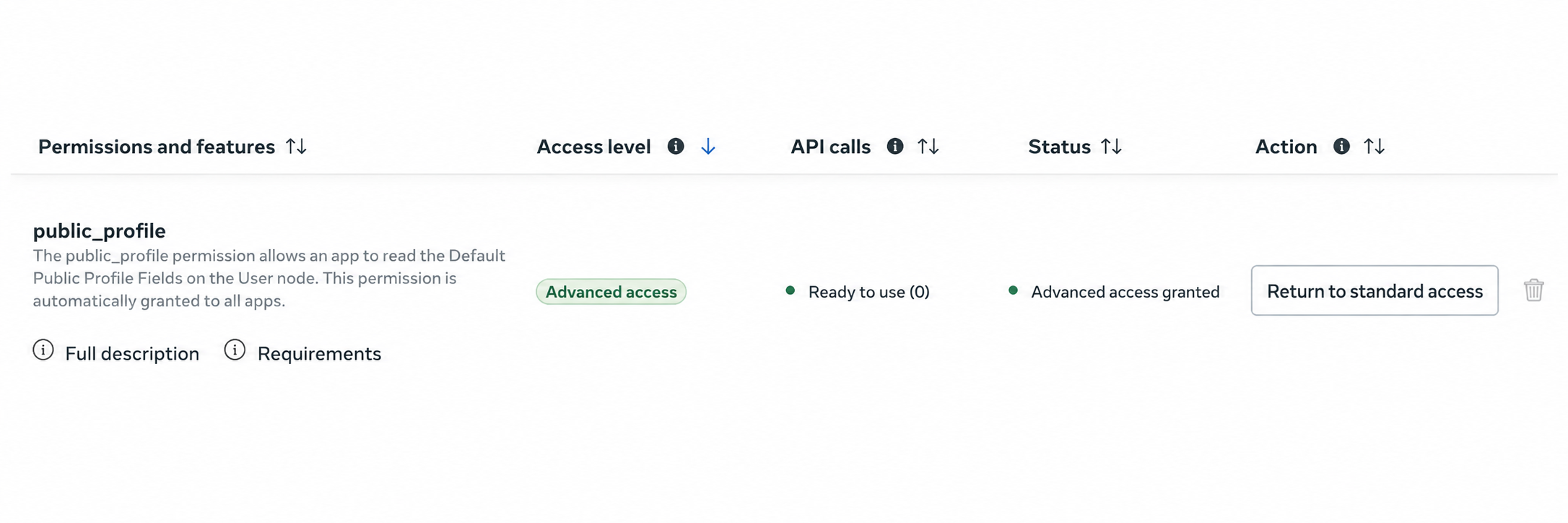
This permission provides basic identity information. It does not give Beacon permission to publish Page posts.
Check the Page permissions
Beacon requests these permissions for your Facebook connection:
| Permission | Purpose |
|---|---|
pages_show_list | Find the Pages available to your Facebook account |
pages_manage_posts | Publish posts to an authorized Page |
pages_read_engagement | Read the Page information required by the connection |
Find each permission in Permissions and Features and complete any requirements Meta shows.
Approval for public_profile does not approve these Page permissions.
Before people outside your app roles connect, complete Meta's required reviews and enable Live mode. If your app accesses other businesses' assets, check any separate Access verification requirement. Use Meta's Facebook Login for Business guidance for current requirements.
Answer the data handling questions
Answer from your organization's actual practices. Do not copy another app's business name, country, or policy answers.
- Data processors or service providers: list companies that process Meta data for your app.
- Responsible person or entity: enter the legal name of the person or organization responsible for that data.
- Country: select where that responsible person or organization is located.
- Requests from public authorities: answer from your records for the period Meta specifies.
- Policies or processes: select only the processes you already have in place.
For hosted Beacon, include Beacon as a service provider that processes your connection data. Use Beacon's privacy contact to confirm its legal provider name and processing countries if needed. Your own location and a provider's processing location can differ.
Review the answers before you select Submit. If Meta opens a confirmation dialog, confirm the submission.
7 Save your credentials in Beacon
Keep your App secret private. Enter it directly in Beacon; do not send it in chat or include it in screenshots.
- In your Meta app, open App settings > Basic.
- Copy the App ID.
- Return to Use your own Facebook app in Beacon.
- Paste the value into App ID.
- In Meta, reveal and copy the App secret.
- Paste it into App secret in Beacon.
- Select Save app credentials.
- Select Continue with your app.
Beacon encrypts the secret and does not display it again after you save it. Use the Facebook app credentials for this connection. Instagram and Threads credentials belong to their separate connections.
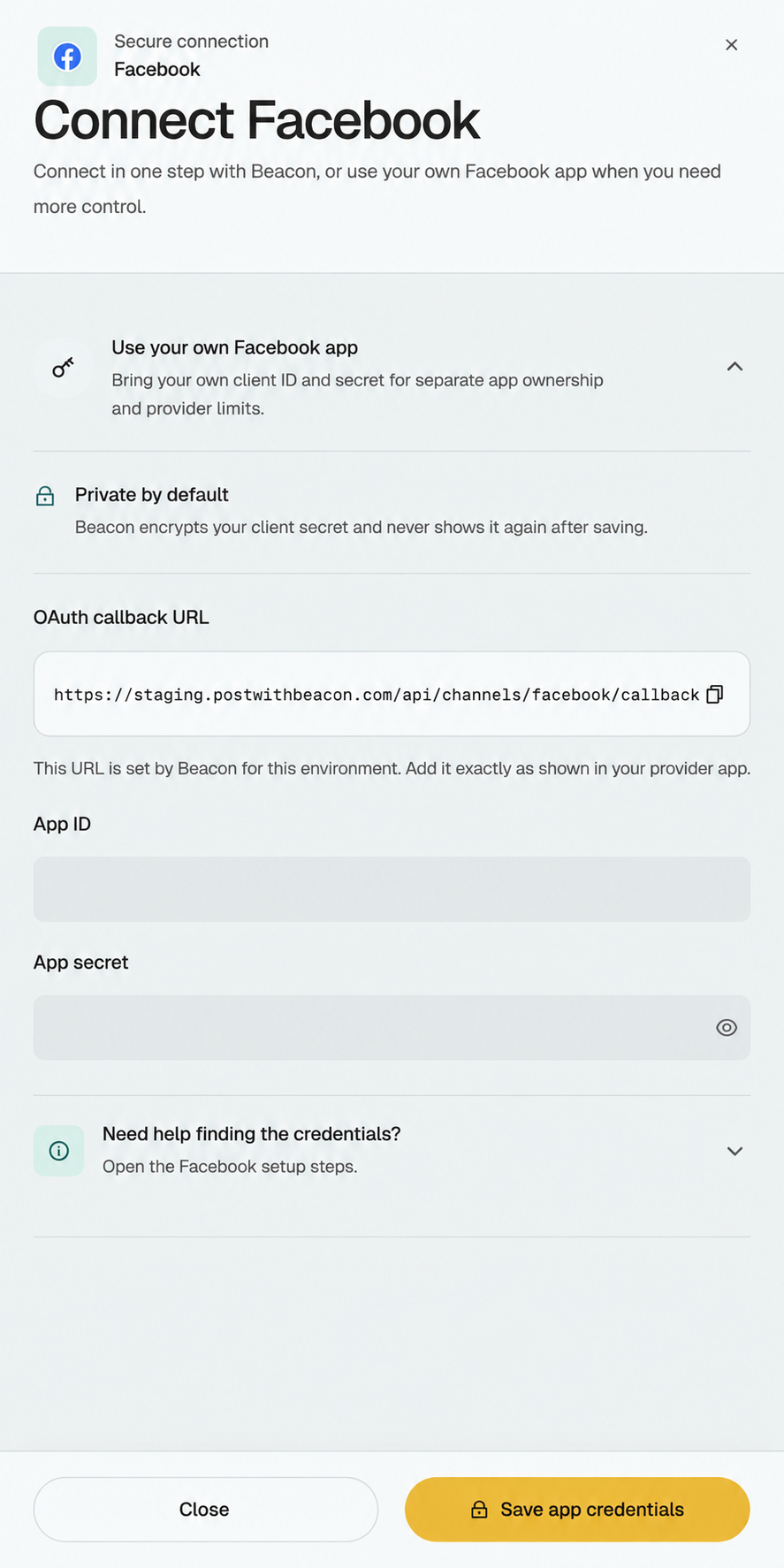
If Beacon shows Workspace owner access required, ask a workspace owner to save the credentials.
8 Authorize your Page and check the connection
- Sign in to Meta with the Facebook account that manages your Page.
- Grant the requested access to the Page you want to connect.
- Return to Beacon after the permission flow completes.
- Confirm the Page name in Channels.
- Check that the Page shows Ready to publish.
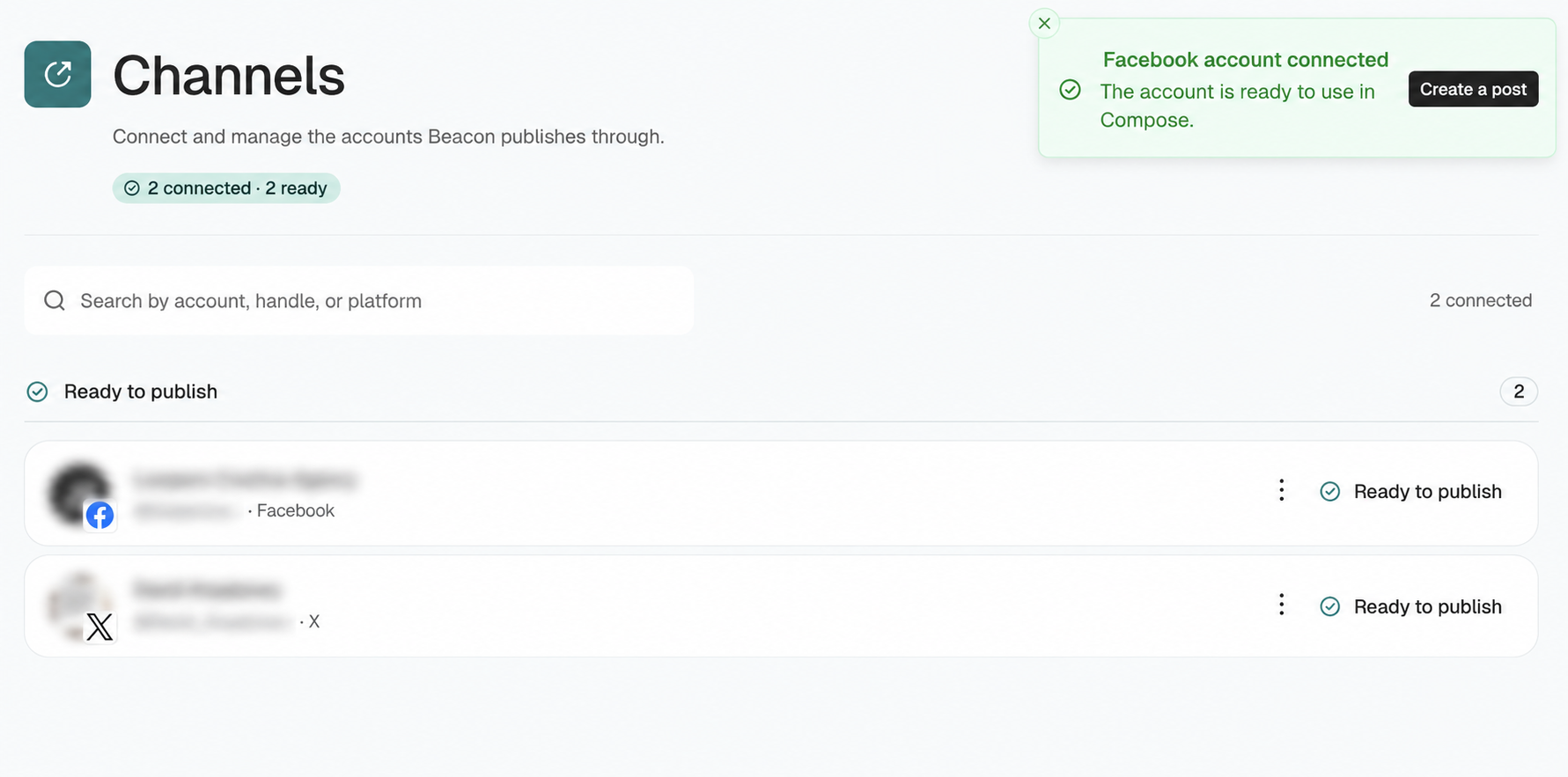
To check publishing, open Compose and select that Page. Prepare a post that you intend to publish, then publish it. Open the resulting Facebook link to confirm the post appears on the correct Page.
Ready to publish describes the connection. A successful post confirms that Beacon could publish to the Page.
Fix a setup problem
Invalid Privacy Policy URL
Check App settings > Basic > Privacy policy URL. Use the full HTTPS address of your app's public policy and save the change. Confirm that the page opens without sign-in before you request access again.
Redirect URL does not match
Copy the callback from Beacon again. Replace the entry in Valid OAuth Redirect URIs, then save it. Check that you updated the same Meta app whose credentials you saved in Beacon.
Facebook Login is unavailable
Check public_profile, Required actions, and the app's Development or Live mode.
In Development mode, check that the person who signs in has an allowed app role.
Complete any verification or review that Meta requests.
Your Page does not appear
Check that you signed in with the correct Facebook account. Confirm that the account can create content on the Page and granted Beacon access to it. Then repeat the connection flow.
You changed or reset the App secret
Open Use your own Facebook app and select Replace credentials. Save the current App ID and App secret, then reconnect affected Pages if Beacon requests it. The saved credentials belong to the workspace, so coordinate changes with other workspace members.
The Page connects but a post fails
Read the error in Beacon and check the Page permissions in your Meta app. Follow the recovery steps in publishing statuses. If the result is Checking, confirm whether Facebook received the post before you try again.